Have you been hearing more about email authentication lately? There is a reason for that. It’s the prevalence of phishing as a major security threat. Phishing continues as the main cause of data breaches and security incidents. This has been the case for many years.
A major shift in the email landscape is happening. The reason is to combat phishing scams. Email authentication is becoming a requirement for email service providers. It’s crucial to your online presence and communication to pay attention to this shift.
Google and Yahoo are two of the world’s largest email providers. They have implemented a new DMARC policy that took effect in February 2024. This policy essentially makes email authentication essential. It’s targeted at businesses sending emails through Gmail and Yahoo Mail.
But what’s DMARC, and why is it suddenly so important? Don’t worry, we’ve got you covered. Let’s dive into the world of email authentication. We’ll help you understand why it’s more critical than ever for your business.
The Email Spoofing Problem
Imagine receiving an email seemingly from your bank. It requests urgent action. You click a link, enter your details, and boom – your information is compromised.
The common name for this is email spoofing. It’s where scammers disguise their email addresses. They try to appear as legitimate individuals or organisations. Scammers spoof a business’s email address. Then they email customers and vendors pretending to be that business.
These deceptive tactics can have devastating consequences on companies. These include:
Financial losses
Reputational damage
Data breaches
Loss of future business
Unfortunately, email spoofing is a growing problem. It makes email authentication a critical defense measure.
What is Email Authentication?
Email authentication is a way of verifying that your email is legitimate. This includes verifying the server sending the email. It also includes reporting back unauthorised uses of a company domain.
Email authentication uses three key protocols, and each has a specific job:
SPF (Sender Policy Framework): Records the IP addresses authorised to send email for a domain.
DMARC (Domain-based Message Authentication, Reporting, and Conformance): Gives instructions to a receiving email server. Including, what to do with the results of an SPF and DKIM check. It also alerts domain owners that their domain is being spoofed.
SPF and DKIM are protective steps. DMARC provides information critical to security enforcement. It helps keep scammers from using your domain name in spoofing attempts.
Here’s how it works:
You set up a DMARC record in your domain server settings. This record informs email receivers (like Google and Yahoo). It tells them the IP addresses authorised to send emails on your behalf.
What happens next? Your sent email arrives at the receiver’s mail server. It is looking to see if the email is from an authorised sender.
Based on your DMARC policy, the receiver can take action. This includes delivery, rejection, or quarantine.
You get reporting back from the DMARC authentication. The reports let you know if your business email is being delivered. It also tells you if scammers are spoofing your domain.
Starting in February 2024, the new rule took place. Businesses sending over 5,000 emails daily must have DMARC implemented.
Both companies also have policies for those sending fewer emails. These relate to SPF and DKIM authentication.
Look for email authentication requirements to continue. You need to pay attention to ensure the smooth delivery of your business email.
The Benefits of Implementing DMARC:
Implementing DMARC isn’t just about complying with new policies. It offers a range of benefits for your business:
Protects your brand reputation: DMARC helps prevent email spoofing scams. These scams could damage your brand image and customer trust.
Improves email deliverability: Proper authentication ensures delivery. Your legitimate emails reach recipients’ inboxes instead of spam folders.
Provides valuable insights: DMARC reports offer detailed information. They give visibility into how different receivers are handling your emails as well as help you identify potential issues. They also improve your email security posture.
Taking Action: How to Put DMARC in Place
Implementing DMARC is crucial now. This is especially true considering the rising email security concerns with email spoofing. Here’s how to get started:
Understand your DMARC options
Consult your IT team or IT security provider
Track and adjust regularly
Need Help with Email Authentication & DMARC Monitoring?
DMARC is just one piece of the email security puzzle. It’s important to put email authentication in place. This is one of many security measures required in the modern digital environment. Need help putting these protocols in place? Just let us know.
https://ctech.au/wp-content/uploads/2026/01/mail-7149606.png13731920adminhttp://ctech.au/wp-content/uploads/2022/12/weblogo-3-300x96.pngadmin2024-05-10 11:00:002026-01-19 11:34:46Why Email Authentication is Now Essential
Many businesses are heavily reliant on email today, due to the fast-paced and connected nature of the world we do business in. Unfortunately, many businesses never consider the security implications of using a system that was never designed with security in mind. Many people do not realise that the main protocols used by email were developed in the 1980s when networks connected to the Internet were owned by the military, educational institutions and the government. There was no reason to think that email being sent was being sent by anyone other than who it said it was sent by.
When an email is sent, it contains two separate sender addresses. There is an “envelope from” (sometimes called the return path) and the header from. The envelope from us the return address which is used by mail servers to return or bounce the message back to. It’s hidden in the email header which includes details used to understand who the message is from, where it has been and what software was used to write it.
All emails are sent with two sender addresses – the “envelope from” (sometimes called the return path) and the header from. The envelope from us the return address which is used by mail servers to return or bounce the message back to. It’s hidden in the email header which includes details used to understand who the message is from, where it has been and what software was used to write it.
The header from is the address visible to the recipient in their email client.
Its not at all difficult for a scammer to spoof either or both of these addresses to make it appear that their email is coming from somewhere other than where it did. Typically, spoof emails will impersonate someone the recipient trusts and uses this trust to get them to pay money into a bank account or to load malware onto their computer.
We were recently contacted by a company which had been subject to such an attack. The scammers had spoofed emails from the company’s accounts department and advised their customers that they had a new bank account and all payments had to be made to this account from a certain date. Some customers were also sent fake invoices which they paid.
Many of the company’s customers received legitimate invoices but paid the invoice into the scammers bank account due to the previous email about their bank details changing. The company estimates over $100,000 was paid into the wrong account.
When we looked at the DNS records for the company, we found that they hadn’t used any of the mitigation measures commonly used, despite having their email hosted in the cloud and set up by their usual managed service provider. While there is no guaranteed way to prevent email spoofing there are some technical solutions which can mitigate the risk of spoofing. These include the Sender Policy Framework (SPF), DomainKeys Identified Mail (DKIM), and Domain-based Message Authentication Reporting & Conformance (DMARC).
Sender Policy Framework (SPF)
The Sender Policy Framework works by providing a list of IP addresses which are authorised to send email for a domain. This IP list is stored in the DNS records of the domain as a TXT record. Email servers which have implemented SPF will lookup the DNS records for the domain that the email appears to come from and if it finds an SPF record in DNS it will compare the SPF record’s authorised IP address to that where the email is coming from.
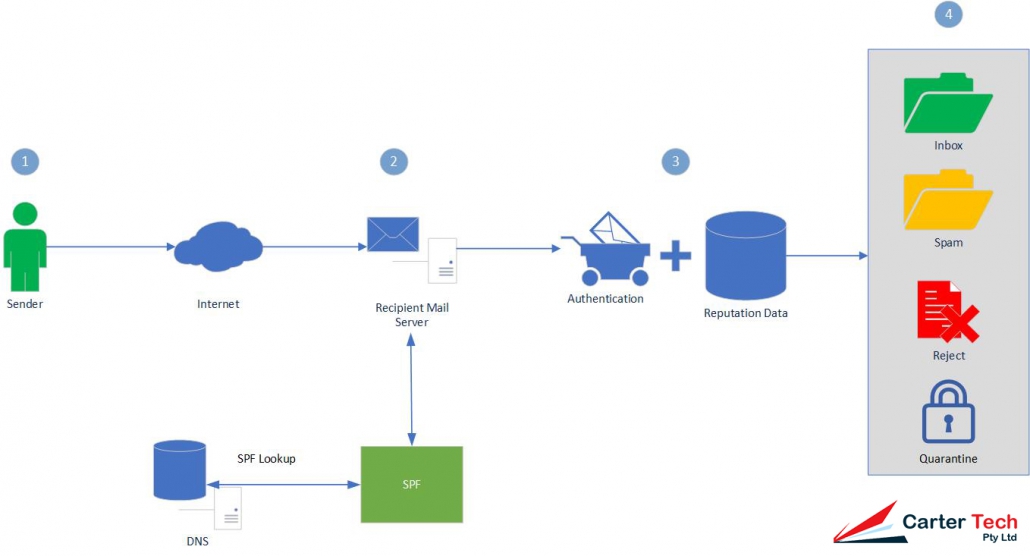
If the IP addresses match, the email passes the test and should be from the domain it appears to be from. If it fails, then what happens depends upon the configuration of the recipient’s mail server. It may be rejected or marked as spam. The diagram below shows how a system uses SPF:
In the diagram you can see that a Sender (1) sends an Email using the Internet which is received by a Recipient Mail Server (2). The recipient server then looks up the SPF data in DNS and authenticates the Email as passing or failing SPF and adds reputation data to the Email header (3). Filters on the server will then decide what to do to with the Email (4) – which can include putting it in a user’s Inbox, Spam folder, rejecting the Email or Quarantining it.
SPF Records
SPF Records are recorded as TXT entries in DNS for your domain, they will look similar to:
v=spf1 a mx include:spf.mydomain.com.au ~all
In the above example:
v=spf1 identifies that the TXT record is for SPF checking and uses version 1 of the SPF protocol
a indicates that a sending IP matching any A record in the domain will pass (or AAAA record if the connection was made over IPv6)
mx indicates that a sending IP matching the MX record of the domain will pass
include: indicates that an IP address matching the rules specified in spf.mydomain.com.au will pass
~all indicates that all other IPs should soft fail (-all would hard fall all other IPs)
SPF Records consist of the SPF version details followed by mechanisms, qualifiers and (sometimes) modifiers.
Mechanisms and qualifiers
Mechanisms are evaluated from left to right with those at the left given greater priority than those to the right. Mechanisms are typically used with qualifiers such as:
+
If the mechanism matches then pass. Mechanisms with no qualifier will be treated as passing (so +mx is the same as mx)
?
For a neutral result (generally interpreted as nothing, that the address specified is neither authorised nor unauthorised to send messages on behalf of the domain)
~
Softfail. Typically used for debugging. Most servers will allow the message through but tag it.
–
Fail. The message should be rejected.
Mechanisms define the mail servers which may send on behalf of the domain. They can be:
all
Always matches. Typically used as the final mechanism with -all to block any addresses not matching those specified
a
If the domain name has an address record (either A or AAAA) that matches the sender’s address it will match.
ip4
Tests whether the sender is in a given network. Can be an individual IP address (such as 10.1.1.1) or a network range given in CIDR notation (such as 10.1.1.0/24)
ip6
Same as ip4 except using IPv6 addresses
mx
If the sender’s address matches an MX record for the domain it will match.
exists
If the sender’s domain name resolves to any address, match. Can also be used with SPF macros to create complex matches.
include
References another domain’s SPF rules. If the address matches the other domain’s rules the message will pass. This is typically used where the domain’s email is hosted elsewhere
Modifiers
Modifiers allow for future extensions to the framework. Currently there are two modifiers defined:
redirect
Redirects queries to another domain. Used where multiple domains are sharing the same infrastructure. Allows SPF records to be entered once and reused multiple times.
exp
Can provide an explanation for fail results by referencing a domain with a DNS TXT record using SPF’s macro language.
Domain Keys Identified Mail (DKIM)
DKIM uses cryptography to verify that an email was sent from the domain it claims to come from. It provides a way for an organisation to take responsibility for sending a message that can be verified by the recipient’s mail server.
DKIM works by creating a hash value for one or more specified email header fields. A hash is a value created by a mathematical function against a string of readable text. For example if we have the following header fields:
From: nathan@carter.technology Subject: DKIM Test
We can hash these (using MD5) to get a value of 6fb5cd149c1d966224f1e41d68c57985.
This hash value is then encrypted using a private key (which is reversible using a public key published in the domain’s DNS) which creates the signature to be added to the email. The signature is added to the email headers as the DKIM-Signature header. An example of which is:
The DKIM-SIgnature header is specified as tag-value pairs. In the above example:
v= is the version of the signature specification. Always 1.
a= is the algorithm used to sign the generate the signature. This should be rsa-sha256.
d= is the domain whose DNS records will be used to get the public key
s= is the selector where the public key can be obtained. In the example, the public key will be a TXT record under auseast._domainkey.carter.technology
c= (optional) the canonicalization algorithm that defines what level of modifications may be present as the email is in transit to the mailbox provider. Modifications can include whitespace or line wrapping. Some email servers may make minor modifications to the email during transit (such as “Forwarded by….”) which can invalidate the signature. The first value is the algorithm for the header, the second for the body (for more detail, see here).
q= (optional) the method to be used to retrieve the public key. Defaults to dns/txt if not specified.
t= (optional) UNIX timestamp of when the signature was created
x= (optional) UNIX timestamp representing when the signature expires
h= a list of header fields used for signing in order from left to right, separated by colons.
bh= hash of the body content of the email encoded in base64
b= the signature encoded in base64 for the header fields identified in h=
The receiving mail server will use the selector and domain to look up the public key to decrypt the signature. This is obtained from a TXT record belonging to the resource (in the above example: auseast._domainkey.carter.technology). The TXT record is also specified in tag-value pairs, such as:
t= (optional) are optional flags. t=Y if the domain is testing DKIM (messages shouldn’t be treated differently to non-DKIM mail even if verification fails), t=s is for disallowing subdomaining
p= is the public key to be used to decrypt the signature
Once the receiving mail server has the public key and signature, it will decrypt the signature and store it for comparison to it’s own hashing of the specified headers. If the hash matches the email is verified. If the hash doesn’t the email is not verified. The receiver will also check the hash of the body to check that the message hasn’t been altered in transport.
DKIM is harder to setup than SPF because it requires changes to your mail server. You can check if your mail system supports DKIM at DKIM.org’s site. If you use a mail provider you will need to work with them to make the changes.
DMARC extends SPF and DKIM and allows the owner of a domain to publish a policy in their DNS records to specify whether DKIM, SPF or both is used when sending email from the domain, how to check the From: field shown to end users, how to deal with failures and how to report actions performed under those policies.
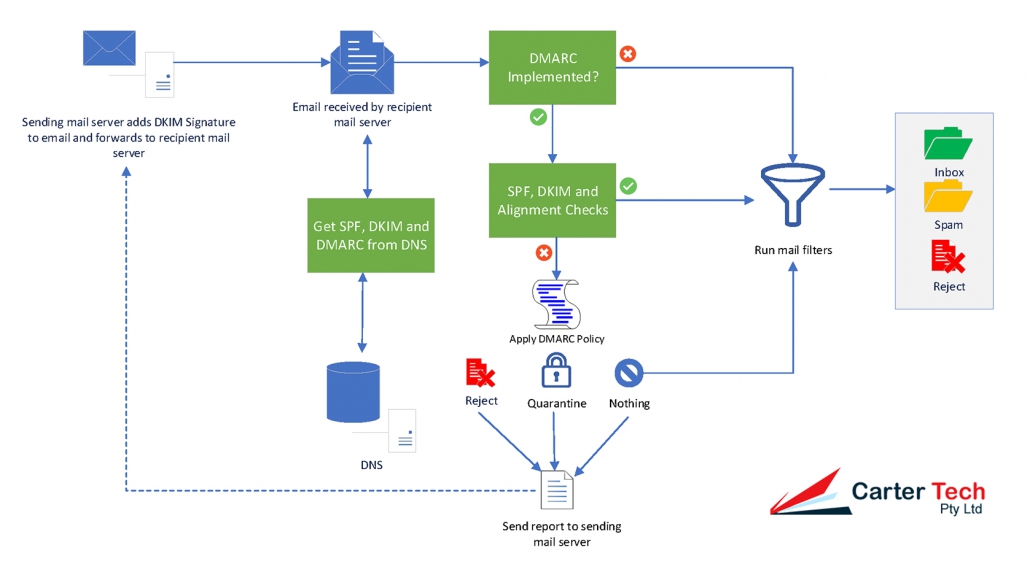
DMARC works in conjunction with SPF and DKIM and adds an additional check – the alignment check which ensures the header from address (the address shown to the user) matches the domain. It does this by comparing the header from to envelope from value used in the SPF check and the header from to the domain name given in the DKIM signature.
The diagram below shows how DMARC processes a message:
The reporting element of DMARC can provide two reports that are sent from a recipient mail server to a sending mail server:
Aggregate reports: typically sent once per day in XML format and gives the IP addresses mail was received from with a count by disposition status (none, quarantine or reject), the DMARC domain identifier and the SPF and DKIM authentication results;
Failure (or forensic) reports: sent almost immediately after a message fails DMARC checks and contains detailed information to help an email administrator can use it to investigate why the email failed authentication
DMARC Records
DMARC records follow the same tag-value syntax used by DKIM:
v= the version tag identifying the record as a DMARC record, it’s value must be DMARC1 and be at the beginning of the record;
p= the policy you want mailbox providers to apply when your messages fail DMARC authentication and alignment checks. Unless an optional sp tag is given it applies to the primary domain (mydomain.com.au) and all subdomains (a.mydomain.com.au, x.mydomain.com.au). The available policies are none, quarantine or reject.
rua= (optional) the URI to send aggregate reports to.
fo= (optional) tells mailbox providers for which events you want to receive failure reports
0: Generate a failure report if both SPF and DKIM dail to produce an aligned pass result (default).
1: Generate a failure report if SPF or DKIM produced something other than an aligned pass result.
d: Generate a failure report if the message had a DKIM signature which failed evaluation.
s: Generate a failure report if the message failed SPF evaluation.
sp= (optional) the policy which should apply to all subdomains.
adkim= (optional) indicates whether DKIM must match the organisational domain (r – relaxed mode (default)) or must be identical (s – strict).
aspf= (optional) indicates whether SPF must match the organisational domain (r – relaxed mode (default)) or must be identical (s – strict) .
pct= (optional) indicates the percentage of messages from the domain the tests should be applied to. Can assist in implementing DMARC gradually. Requires a value between 0 and 100 (default). Where a number below 100 is used, the messages not subject to the test will be subjected to the next-lowest level test (so for 60 with a reject policy, 40% will be subjected to quarantine, for 60 with a quarantine policy, 40% will be subjected to nothing)
ruf= (optional) the URI to send failure reports to.
rf= (optional) indicates the format for message failure reports. At present the Authentication Failure Reporting Format (afrf) is the only value supported.
ri= (optional) how often aggregate reports should be sent in seconds. Defaults to 86400 (one day).
We suggest implementing DMARC in stages. Starting with reporting only, then moving to quarantine then rejection. This way the reports from each stage can be reviewed and any issues ironed out before progressing to the next stage. The task of analysing your aggregate reports can also be made easier using various parsing tools or online services.
SPF, DKIM and DMARC are not Perfect
While SPF, DKIM and DMARC can cut down on the number of spoofed emails appearing to come from your domain they are not perfect because:
A system in your environment may be compromised and sending email through your mail system;
Many email hosts are not properly configured for one or more of the protocols and may ignore your settings or only respect part of your settings.
Ensuring your email system can interpret SPF, DKIM and DMARC can also help to cut down on the number of spoofed emails you receive but keep in mind that legitimate emails can sometimes fail the checks which may need you to apply less aggressive settings.
https://ctech.au/wp-content/uploads/2019/03/spoofing.jpg12801920adminhttp://ctech.au/wp-content/uploads/2022/12/weblogo-3-300x96.pngadmin2019-03-03 21:59:542025-12-15 16:40:07Protecting yourself against spoofing
Nearly every business these days relies upon email for both internal and external communication. Email is now commonly used at work, at home and on people’s phones. Whether you use webmail, your ISPs email service or your own email system email is more complicated than you might realise.
You may have seen in your incoming email settings on your computer or phone the terms POP and IMAP. These are the protocol (or language) used to communicate with your email server.
Post Office Protocol (POP)
POP is the older of the two protocols commonly used for the retrieval of email. It’s first edition dates back to 1982 with the current version (version 3) dating back to 1988.
Back when POP was created, computers (including mail servers) had only low bandwidth access and very limited storage so it was decided to create a protocol which downloaded copies of emails which could be read offline and to delete those emails from the server.
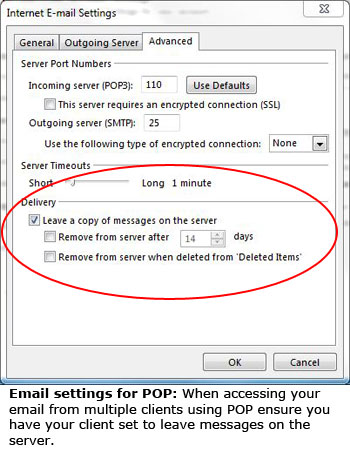
POP is an adequate solution until you need to access your email on multiple devices. In order to access your POP based email on other devices you need to make sure that each device is set to leave mail on the server. If one device isn’t set properly it will grab all your mail and delete it off the server so it can’t be accessed on any device which may access it after. Even when your mail is kept on the server, each device you access it from will download your email and show it as being unread (even if it has already been read). If you have organised your mail into folders or deleted it, this won’t be reflected on any device other than the one on which you did it on. This can be quite frustrating and time consuming – having to re-read and re-organise emails.
Internet Message Access Protocol (IMAP)
IMAP is the newer protocol of the two. It was designed in 1986 and has gone through a number of revisions until the current version (version 4) in 1994.
IMAP differs from POP by allowing users to access their emails from multiple devices and view the same emails because they are stored on email servers until the user deletes them. Because the mail is stored on the server, when you read an email on one device it is marked as read on every device, when you organise your email into folders, those emails and folders are the same on each device.
Where it is now common to check email via web interfaces, email applications and on mobile phones, IMAP has become the protocol of choice.
The major disadvantage with IMAP is that the size of your mailbox is constrained by your allocated quota on the server. In the case of POP, you can have mailboxes the size of your hard disk because the emails are kept locally.
Which should you use?
In most circumstances IMAP is the more appropriate protocol to use due to its support for multiple devices and its ability to keep your mailbox the same across devices, however, if you expect to keep a huge history of email you might want to use POP to keep space free on your email server.
http://ctech.au/wp-content/uploads/2022/12/weblogo-3-300x96.png00adminhttp://ctech.au/wp-content/uploads/2022/12/weblogo-3-300x96.pngadmin2013-07-31 07:31:402013-07-31 07:31:40What’s the difference between POP and IMAP?
It’s amazing how many businesses don’t use their own domain name for their email, instead using a webmail service or their Internet Service Provider’s email account. It leaves a far better impression to have an email address like mail@marysshoes.com.au than to have marysshoes@bigpond.com. An even poorer impression comes from businesses who have addresses like marysshoes@gmail.com.
Having your own domain name shows that your business is professional, proud of its brand and wants to be taken seriously. It also allows you to change your ISP without losing your email address.
Your own email address is extremely easy to setup, you purchase a domain name from a registrar and either redirect it to another email address or obtain email hosting. Most registrars will provide email hosting for a small additional fee. Alternatively, if you don’t want to setup your own email yourself you can call Carter Tech and we can do it for you!
http://ctech.au/wp-content/uploads/2022/12/weblogo-3-300x96.png00adminhttp://ctech.au/wp-content/uploads/2022/12/weblogo-3-300x96.pngadmin2013-03-28 13:12:302013-03-28 13:12:30Why you need a professional email address

 POP is the older of the two protocols commonly used for the retrieval of email. It’s first edition dates back to 1982 with the current version (version 3) dating back to 1988.