
Five Common Questions About Windows 11 Answered
Microsoft’s latest operating system is starting to take the world by storm. But before jumping ship and upgrading to the new OS, better read this first.
It’s finally here.
After six years, Microsoft has just released the latest version of its operating system — Windows 11.
At a time when computers and technology play a more central role in human lives, tech companies are scrambling to deliver the best user experience possible to capture the ever-expanding market.
Microsoft’s answer to the growing demand for better technology for home and business use is Windows 11.
Microsoft dubs their latest operating system as the “Windows that brings you closer to what you love.” But are they actually able to achieve that?
I know you have a lot more burning questions about this latest OS from Microsoft. So without further ado, let’s jump right into answering the five biggest questions you may have about Windows 11.
The five questions about Windows 11
Question #1 – What’s the difference betweeen Windows 10 and 11?
Windows 11 gets a significant boost in performance, functionality, and style compared to Windows 10. Here’s a small rundown of the critical upgrades Microsoft made for its latest OS:
- Windows gets a makeover: If you’ve used Apple before, you might see the similarities between the design of the macOS and the latest Windows model. Windows now also sport tightly rounded corners and the taskbar icons are permanently centered. But at least the ever-handy Start button is here to stay.
- Streamlined Productivity Functions: There are many small but significant upgrades that Microsoft did for Windows 11. For one, your PC will now remember the last layout of your choice when docking. Each of your virtual desktops can also have a different background. Also, widgets are back like never before. And Windows 11 features a Snap Layout function that lets users choose from a variety of layout options at the click of a button.
- New and Improved Teams: With hybrid work becoming the new normal around the world. Teams entered the spotlight. Because of this, Microsoft made sure to include reasonable upgrades to the application. For example, Teams is now integrated into the operating system, making it easier to communicate with family, friends, and colleagues.
- Better Gaming Experience: Microsoft made sure to think about not just business people and workers when designing the new Windows 11. Gamers will love the fact that playing games on Windows is made even better, with Xbox Game pass and Cloud gaming supported on the Xbox app in Windows 11.
- Android Apps on Your PC: Aside from offering better compatibility with the Xbox, Microsoft has successfully integrated Android apps on your PC using Windows 11. But here’s the catch: We’re not yet sure if these Android apps would work optimally on PC.
Question #2 – Will Windows 11 run on my existing fleet?
It depends. Here’s an essential checklist of what you need to have to run Windows 11 smoothly:
- At least a 1GHZ dual-core processor
- 4 GB of RAM
- At least 64 GB of storage
- A graphics card compatible with DirectX 12 or later, with a WDDM 2.0 driver
- 720p display, at least 9” diagonal size, with 8 bits per colour channel
- TPM version 2.0
- UEFI, Secure Boot capable firmware
If your PC or laptop covers or does more than what’s listed above, then you can safely upgrade to Windows 11, worry-free.
On the other hand, you might have to make some hardware upgrades or buy a new device altogether if your current one does not meet the minimum requirements.
Question #3 – Is the Microsoft Office suite available on Windows 11?

No. You have to pay for a Microsoft Office subscription first.
But if you have an existing subscription to Microsoft 365, then you’re all set. You just need to install the Office suite after upgrading to Windows 11.
Note that support for older versions of Office (2010 and below) has been discontinued since last year. So if you’re still using that, we suggest you make necessary changes to avoid making yourself vulnerable to security risks.
Question #4 – How can I switch from Windows 10 to 11?
If you’re looking to upgrade from Windows 10 to 11, you have nothing to worry about.
You just need to go to the Windows Update section of your Settings and click “Check for Updates.” Windows 11 will just be there available in the upgrade section. Click the “Download and Install” button, and that’s it.
Question #5 – Do I really need to switch to Windows 11?
No. If your computer is not compatible or can’t run Windows 11, you don’t have to upgrade.
On the other hand, if your PC is compatible with Windows 11 but you find the upgrades unnecessary for your current workflow, there’s nothing wrong with staying with Windows 10.
Even Microsoft said that Windows 10 is still the right choice for those who aren’t ready to transition to a new operating system. In fact, they made sure of this by scheduling an update for Windows 10 later this year. At the same time, the company will continue supporting Windows 10 until October 14, 2025.
This gives you about four years to think about upgrading to Windows 11 or switching operating systems altogether.
Technology that works for you
The new era of Windows has finally arrived.
Microsoft made it a point to make their latest OS worth it for old and new Windows users. And with these new updates, it is clear that the company has made an effort to find out its users’ pain points and address them.
But despite these new features, you have to understand one thing:
Technology is just a tool used to increase our everyday productivity and efficiency.
That means you don’t need to jump ship to Windows 11 if you’re not ready to do so outright. Technology is only as effective as how much you use it. So if you’re already a master of Windows 10 and it makes you 100% productive, then change is unnecessary.
Now, suppose you’re seriously thinking about making the switch to Windows 11. But you want to know more about its hardware compatibility and security updates. In that case, you need an IT service provider that’s willing to talk you through it.
If you need any help in fully understanding the pros and cons of switching (or not changing) to Windows 11, schedule a 15-minute, no-obligation conversation with our team today.
Service continues during COVID-19
Carter Tech remains open and will continue to support your business through these unprecedented times.
We will continue to provide remote support and can provide on-site support where necessary in compliance with Health Department recommendations and guidelines.
As businesses respond to the need for social distancing and switch some or all of their staff to working from home, we can help set up video conferencing, collaboration and remote work systems.
Office 2010 End of Support is coming
You would have heard that Windows 7 goes out of support next month and have already (or almost) completed your migration to Windows 10 but did you know that Office 2010 is also going out of support next year?
In a survey by IT management software company Spiceworks in 2017, it found that Office 2010 was the most popular Office suite, followed by Office 2013. In our experience, unless they upgrade to Office 365, clients are less likely to upgrade to a major version of Office than they are Windows and will continue to use their older copy of Office as long as it works on their version of Windows or goes out of support.
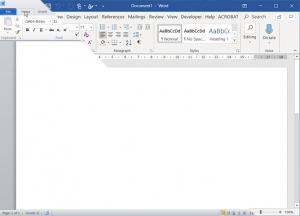
The User Interface in Office 2019 hasn’t changed much from Office 2010.
Support for Office 2010 will end on 13 October 2020. From this date, Microsoft will no longer provide security updates or bug fixes, technical support and the online help system will be retired. Of most concern is the lack of security updates which will leave you at risk of attack with any vulnerabilities not being fixed by Microsoft.
As with other Microsoft products going out of support, your copy of Office will still work you just won’t have updates or support from Microsoft.
To stay current, customers have two options – upgrading to Office 2016 or subscribing to Microsoft 365.
The Office 2019 path
As with Office 2010, Office 2019 is a one-time purchase which allows you to use on a single device forever. It contains the features the Office apps had in Microsoft 365 in September 2018 “frozen in time”. It is suited to those who don’t want to pay for their software on a subscription basis and aren’t concerned with having the latest and greatest.
If you are considering purchasing Office 2019, you should be aware that it won’t get ten years of extended support, with support ending in October 2025 (the same as Office 2016).
The most useful changes in Office 2019 since Office 2010 are:
- Integration with OneDrive
- Support for editing PDF files in Word
- Support for saving as PDF files
- Improved Version History for documents
- Skype integration allowing you to chat, share screens and have conversations with co-workers right from within Office.
- OneNote’s interface becomes consistent with the rest of the office suite
- It works better on touchscreens (and has a toggle button at the top
- Excel can run in multiple windows (rather than having to open separate instances of the application)
- Smart Lookup allows you to select a word or sentence and get definitions, a location (for an address), photos and more.
The Microsoft 365 Path
Microsoft 365 is the new name for Office 365 which includes Office apps, cloud services and security services. It is a subscription-based product and new features become available on a regular basis. You can only use it as long as your subscription is current but it is licenced on a per user basis rather than per machine. The number of devices it can be installed on depends upon the plan, but most allow you to install it on 5 computers, 5 tablets and 5 smartphones.
The features you get depend on the plan you choose, but
Different subscription plans give different features, with some plans offering free Skype minutes (for home use), Skype for Business, Sharepoint online, 1TB of OneDrive storage, private social networking with Yammer and business grade email.
To discuss the best upgrade option for you, please contact us.
Office 2007 End of Support is coming
Like all Microsoft products, Office has a lifecycle where after a certain period Microsoft will stop supporting it. For Office 2007, support will end 10 October 2017. From this date, Microsoft will no longer provide technical support, big fixes or security updates for the software. Microsoft recommends updating as soon as possible.
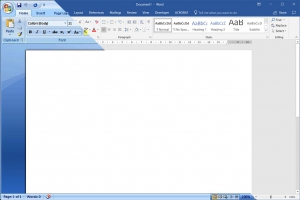
Office 2016 doesn’t make major interface changes in the way 2007 did when it was released.
The main concern with Office 2007 after 10 October is the lack of security updates, meaning that any vulnerabilities which could be used by an attacker to harm your computer and data will not be fixed. The other issue will affect users using Office 365’s email service or Exchange Online as they transition to a new protocol on 31 October which won’t be supported by Office 2007. Just as with end of support for Windows XP the software will continue to work, it just won’t receive updates or support from Microsoft.
To stay current, customers have two options – upgrading to Office 2016 or subscribing to Office 365.
The Office 2016 path
Many customers who have heard of Office 2007’s retirement have asked what the major differences between Office 2007 and 2016 are. The ones we find most useful are:
- Integration with OneDrive
- PDF support is built in
- Skype integration allowing you to chat, share screens and have conversations with co-workers right from within Office.
- OneNote’s interface becomes consistent with the rest of the office suite
- It works better on touchscreens (and has a toggle button at the top
- Excel can run in multiple windows (rather than having to open separate instances of the application)
- Smart Lookup allows you to select a word or sentence and get definitions, a location (for an address), photos and more.
Customers would typically buy Office 2016 if they would prefer to pay for their software upfront and aren’t worried about having the latest version. Customers may opt for Office 2016 if they would prefer to have complete control over updates to major new releases. Unless you are a volume licencing customer, Office 2016 is licenced for use on one computer without upgrade to future versions of Office included.
The Office 365 Path
Office 365 is similar to Windows 10 in that it is a constantly evolving product. With Office 365 you subscribe to the software and receive all major new releases. Your software can only be used while your subscription is current but it is licenced on a per user basis rather than per machine. The number of devices it can be installed on depends upon the plan, but most allow you to install it on 5 computers, 5 tablets and 5 smartphones.
Different subscription plans give different features, with some plans offering free Skype minutes (for home use), Skype for Business, Sharepoint online, 1TB of OneDrive storage, private social networking with Yammer and business grade email.
To discuss the best upgrade option for you, please contact us.